Organize variant swatches with sections
Sections let you split a long list of variant option values into labeled groups on the product page. Instead of showing all swatches in one row, users see them organized under headings like "Core colors" and "Limited edition".
This is useful when a product has many variants under a single option (e.g. 20+ colors) and a flat list becomes hard to browse.
How to set it up
1. Enable sections for an option
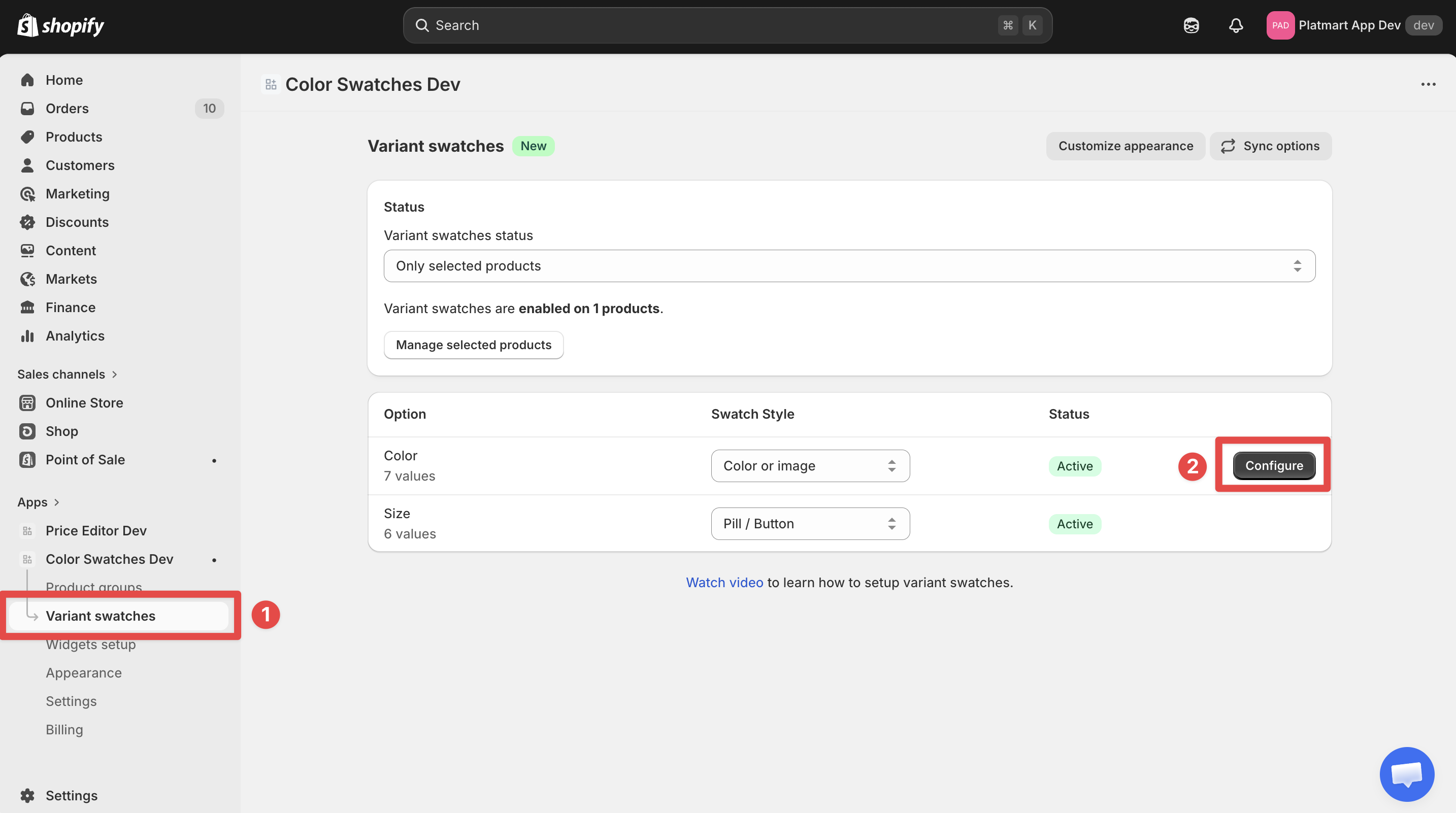
- Go to Variant Swatches in the app
-
Click the option you want to organize (e.g. "Color")
-
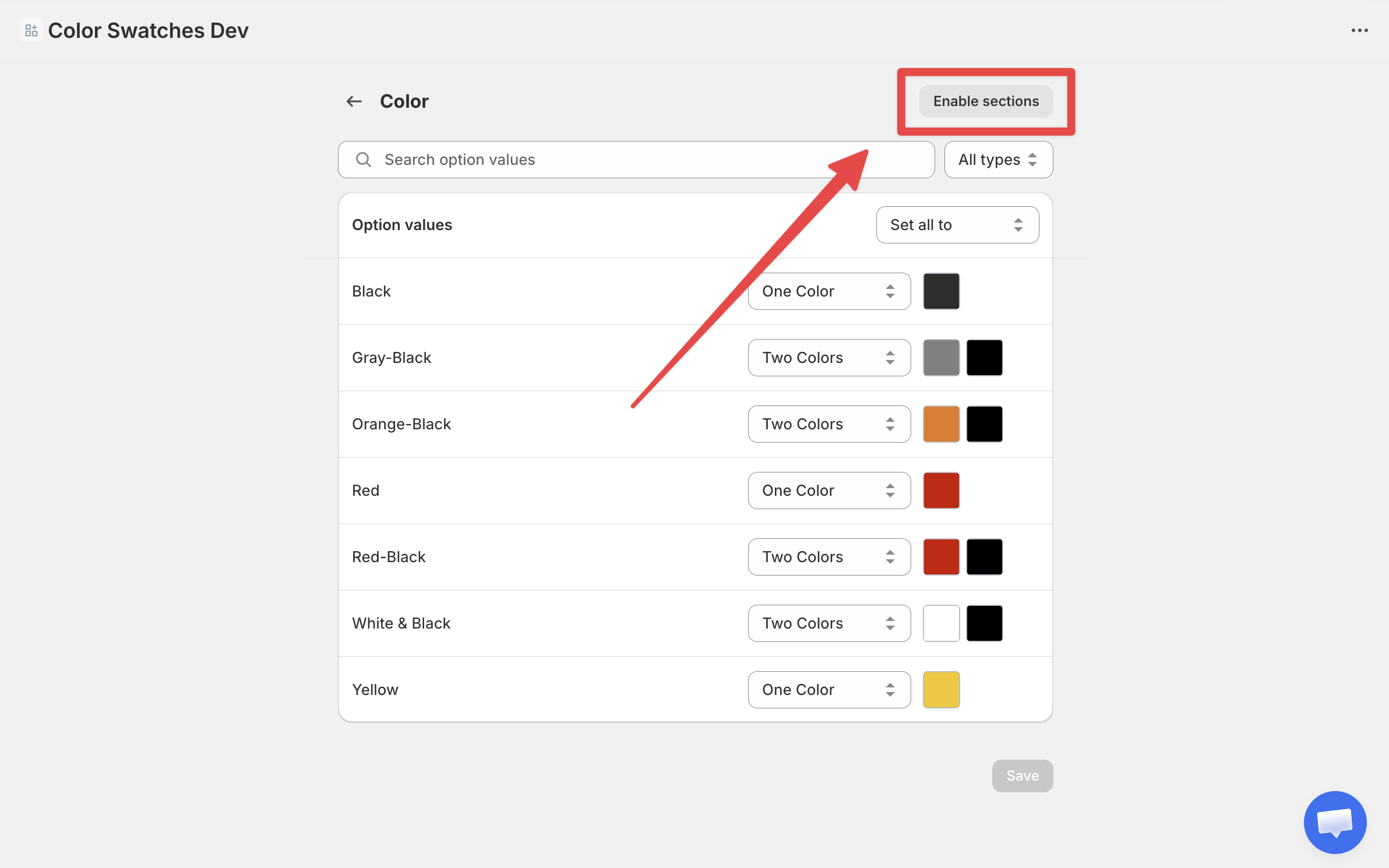
In the page actions menu (top-right), click Enable sections
2. Create your sections
- Click Manage sections in the page actions menu
-
Type a section name (e.g. "Limited edition") and click Add section
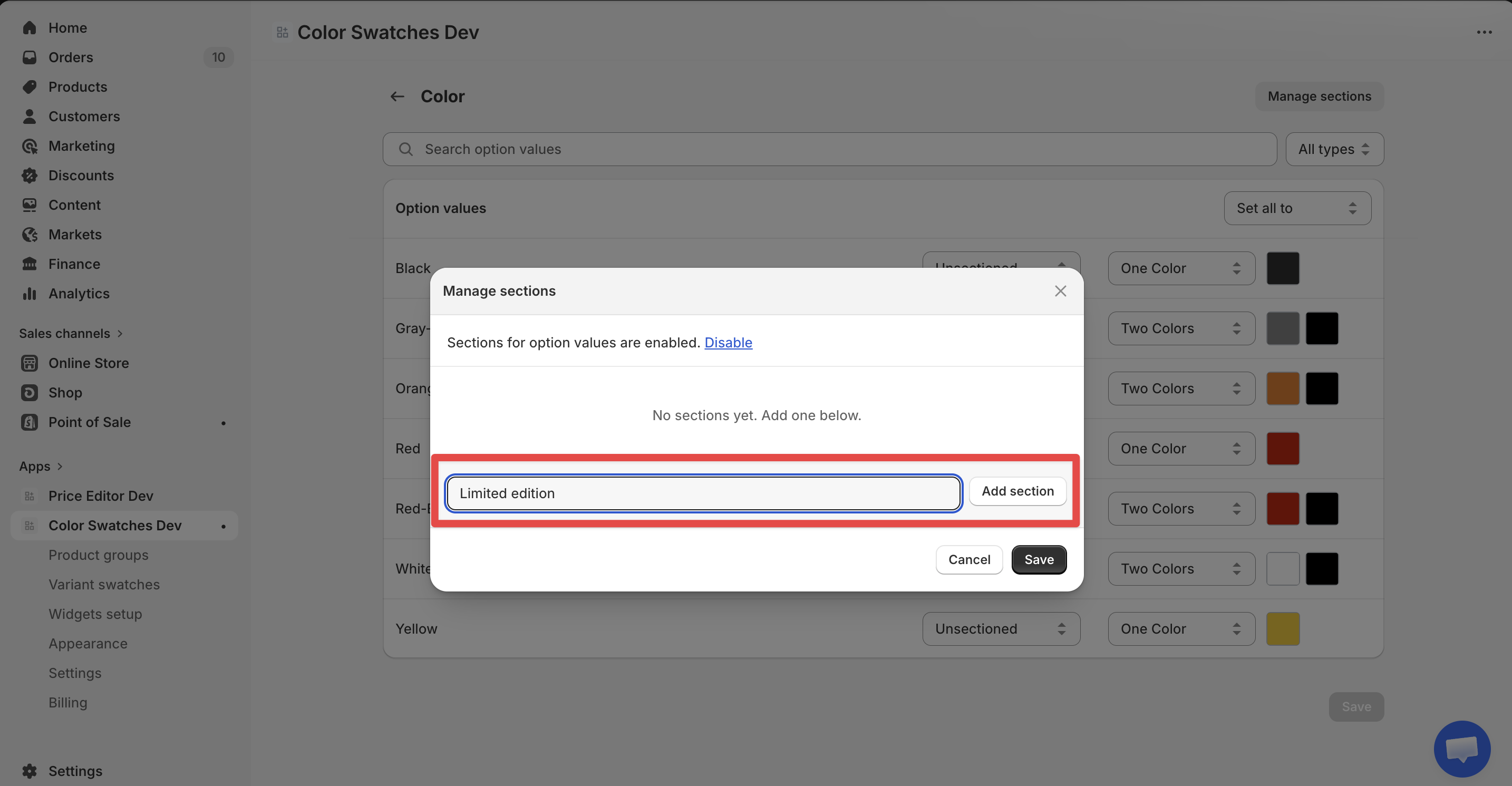
- Add as many sections as you need
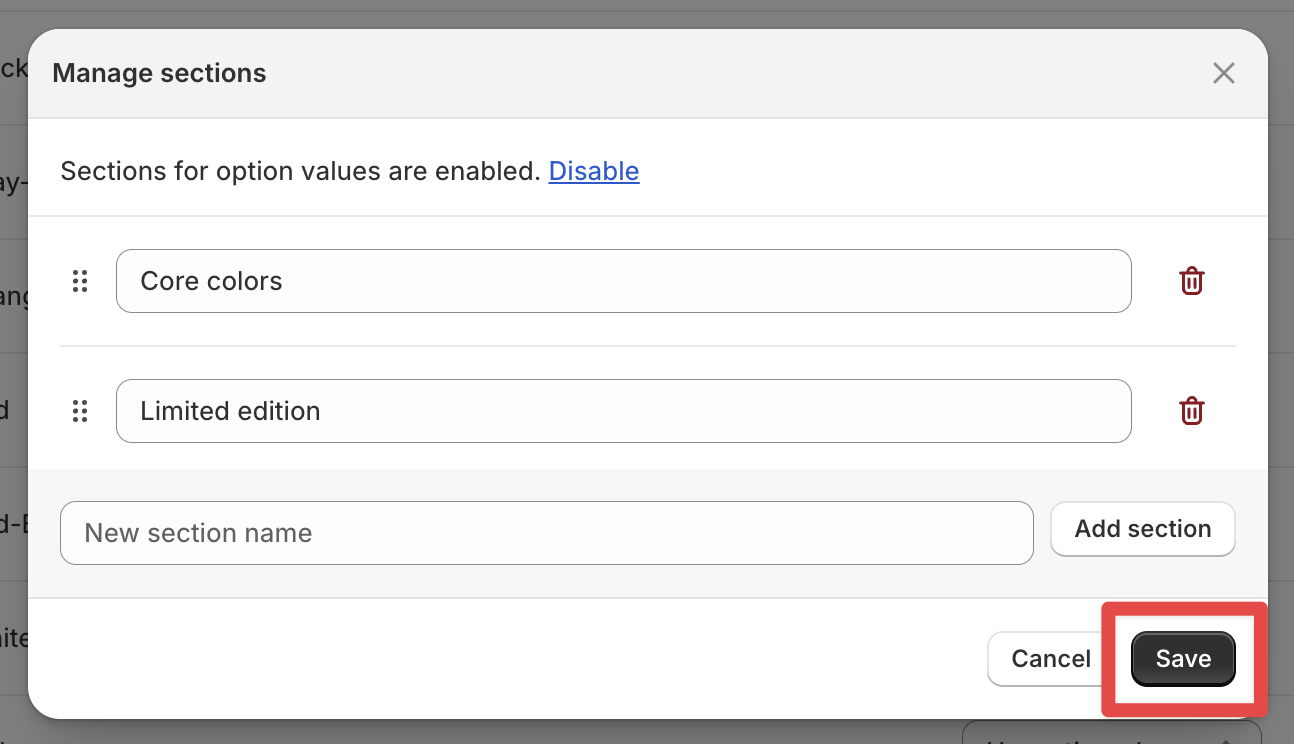
- Drag to reorder sections - this controls the order they appear on the storefront
-
Click Save
3. Assign option values to sections
After creating sections, each option value row shows a dropdown next to it. Use the dropdown to assign a value to one of your sections.
Values set to "Unsectioned" will appear at the top of the list under the original option name (e.g. "Color"). Sectioned values appear below, grouped under their section heading.

Click Save when you're done assigning.
How it looks on the storefront
Each section renders as a separate group of swatches with its own heading label. The order is:
- Unsectioned values (under the original option name, eg "Color")
- Section 1 values (under the first section's name)
- Section 2 values (under the second section's name)
- And so on...

Empty sections (with no assigned values) are automatically hidden.
Disabling sections
To go back to a flat swatch list:
- Click Manage sections in the page actions menu
- Click Disable at the top of the modal
- Confirm the action

This removes all section assignments but does not delete the option values or their swatches. You can re-enable sections later and start fresh.
Tips
- Section names should be short. They appear as headings on the product page, so keep them concise.
- You don't need to section everything. Values without a section still display normally at the top.
- Sections are per-option. You can use sections for "Color" but keep "Size" as a flat list.
- Changes sync automatically. After saving, the storefront updates within a few minutes.